SharePoint can solve many problems and provide workable solutions to many use cases. Though perhaps not as intuitive or elegant, many enterprises have even used it to provide Dropbox-like functionality. The upside being the security and enterprise integration with other Office 365 features, the downside… well, configuring your document repository for this kind of active sharing takes a bit of extra doing.
The Mission: Share out folders in a document library to external users.
The Problem: Sharing out individual folders within a SharePoint library may result in an error when the user attempts to access.


But you did everything correctly right?
You sure did, you just didn’t do that other thing you didn’t KNOW you needed to do 🙂
But don’t worry, we’ll get you fixed right up.
The Solution: It seems that in order to share out folders it is first necessary to disable a little site level feature called “Limited-access user permission lockdown mode” (just rolls off the tongue, does it not?).

And there you go! You should be ready to rumble. For you pragmatists, that’s pretty much all there is to it.
For anyone who wants a little more detail read on…
The Boring Details:
But Martin you ask, how should I know about this little detail? Well, I had to more or less stumble my way across it.
First, I went to assign permissions to an individual folder using the standard interface using the “Grant Permissions” button:
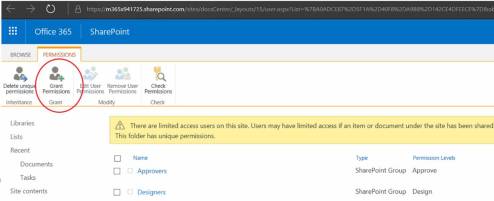
Which triggered a somewhat useful message stating that:
“Sharing folders is disabled, To enable sharing, disable the limited access lockdown mode feature on the Site Features page, or share the individual files or the site instead.”

Deactivating the feature took care of the access problem but then I ran into an interesting artifact.
In my testing I had uploaded some new files to the folder before sharing it out.
So when I finally got access to the shared folder what I actually saw was, well… nothing. More accurately, I saw an empty folder:
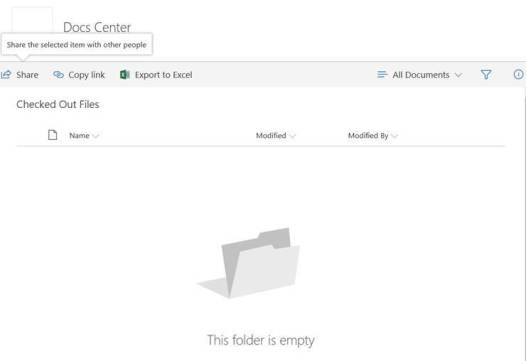
Turns out that I had Check-in/Check-out enabled on this library so files I just dumped in there were checked out by default which is pretty typical of most libraries.
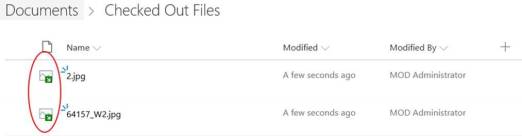
… (and/or disabling Check-in/Check-out in the Library Settings panel) …

… made them visible to me as an external user.

I thought this was worth mentioning because as check-out is typically enabled by default and I think we’ve all had that experience of uploading some files and forgetting to check them in, which effectively makes them invisible to others until they do get checked in.
Hope that helps some of you avoid some frustration.


 Who’s it Good For?
 So turn that time on the commute, treadmill or even that pilgrimage to the DMV into something productive and to my surprise, even entertaining.
 Martin Ballard